
a guide on fixing this games settings re-setting
how to fix
step 1: finding the cfg folder
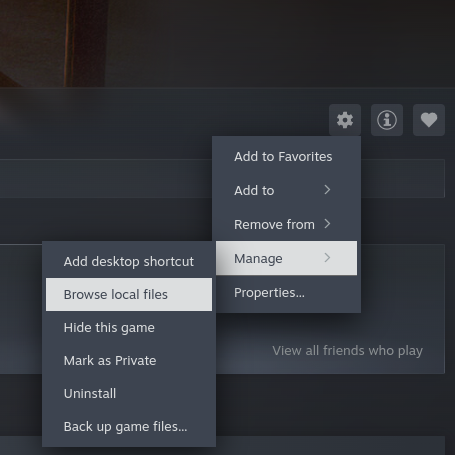
the easiest way is to use steam’s properties menu. click the gear icon then manage and browse local files.
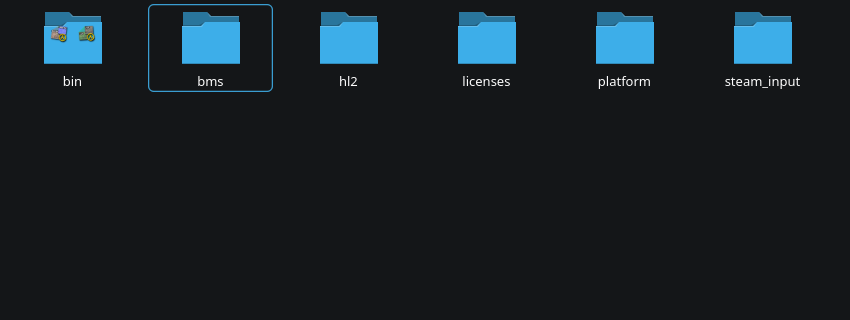
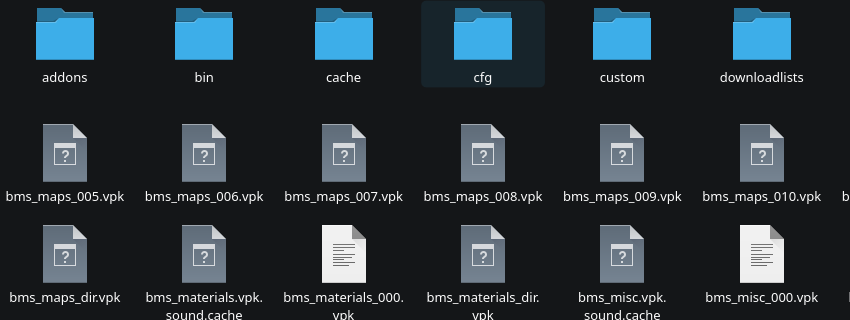
next navigate into the “bms/cfg” folder.
step 2: the autoexec
now find the file “autoexec.cfg”. if it does not exist make a blank text document labeled as that.
now paste this labeled text into the file.
con_enable "1" //enables the console
sv_unlockedchapters "20" //unlocks chapters

//control settings

#always crouch jump
cl_auto_crouch_jump "0"

#auto aim settings
sk_autoaim_consideration_cone1 "0.75"
sk_autoaim_consideration_cone2 "0.849609375"
sk_autoaim_consideration_cone3 "0.962448120117"
sk_autoaim_scale1 "7.5"
sk_autoaim_scale2 "5.625"
sk_autoaim_scale3 "4.21875"
sk_autoaim_magnetism2 "3.75"
sk_autoaim_magnetism3 "2.8125"

#mouse sensitivity
sensitivity "3.00"

#quick weapon switch
hud_fastswitch "1"

#weapon autoswitch
cl_weapon_autoswitch "0"

//graphics settings

#anisotropic filtering
mat_forceaniso "16" //number of samples

#anti-aliasing settings
mat_software_aa_strength "0.000000" //anti-aliasing strength
mat_software_aa_strength_vgui "1.000000" //HUD anti-aliasing strength
mat_fxaa_enabled "0" //FXAA toggle

#bullet holes
r_drawflecks "1"

#chromatic aberation
mat_chromatic_damage_enable "0"

#colour correction
mat_colorcorrection "1"

#detail props
r_drawdetailprops "1"

#eject  bullet casings
cl_ejectbrass "1"

#expensive water rendering
r_waterforceexpensive "1"

#framerate cap
fps_max 60

#high end graphics
mat_unlock_gfx_highend_unsupported "0"

#lighting settings
nr_lights_quality "3" //light quality
np_gr_quality "2" //god-ray quality
np_gr_quality_sample_count "3" //god-ray samples
np_gr_quality_pass_count "1" //god-ray passes

#motion blur
mat_motion_blur_enabled "0"

#number of pieces props break into
props_break_max_pieces "-1" //the lower the number the more pieces

#pic mip level
mat_picmip "-1" //the lower the number the greater the resolution of the textures

#shadow settings
nr_shadow_res "0"
nr_shadow_quality "4"
nr_shadow_max_passes_per_frame "30"
nr_shadow_filter_quality "2"
nr_shadow_active "666"

#skybox settings
sv_skyname "bm_sky_underground_00"

#view roll
cl_view_roll "0.0"

//sound settings

#geiger counter noise
mat_geiger_noise_enable "1"

#general
windows_speaker_config "4" //speaker type
snd_fxvolume "0.30" //sound effect volume
snd_musicvolume "0.10" //music volume
snd_mixahead "0.100000" //sound buffer length

//text settings

#chat filter
cl_chatfilter_version "1"

#language settings
closecaption "1"
cc_subtitles "1"
cc_lang "english"
[code/]
warning:
these are my settings, you may need to edit them in order to run properly on your computer, so I have done my best to lable them.

step 3: enjoy

now everytime you boot the game, it will run those commands and change your settings.