
Henry Stickmin looking too blurry on your Mac?
This guide will help you enable Retina display support to make him look extra crispy
Why is this even needed?
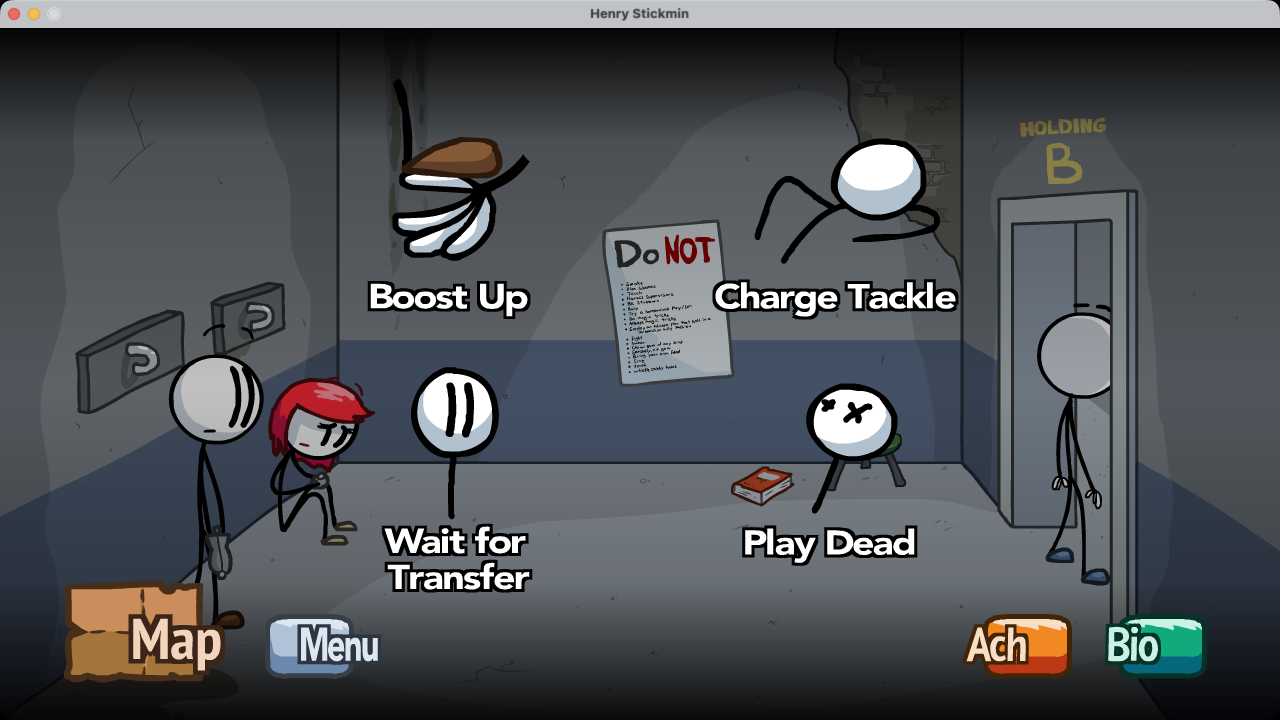
If you’re running the game on a modern(ish) Mac device, you most likely have a high-resolution Retina display. But by default, the game doesn’t take full advantage of your screen resolution and displays a blurry, scaled image instead. Here’s an example:
Before enabling Retina display support
After enabling Retina display support
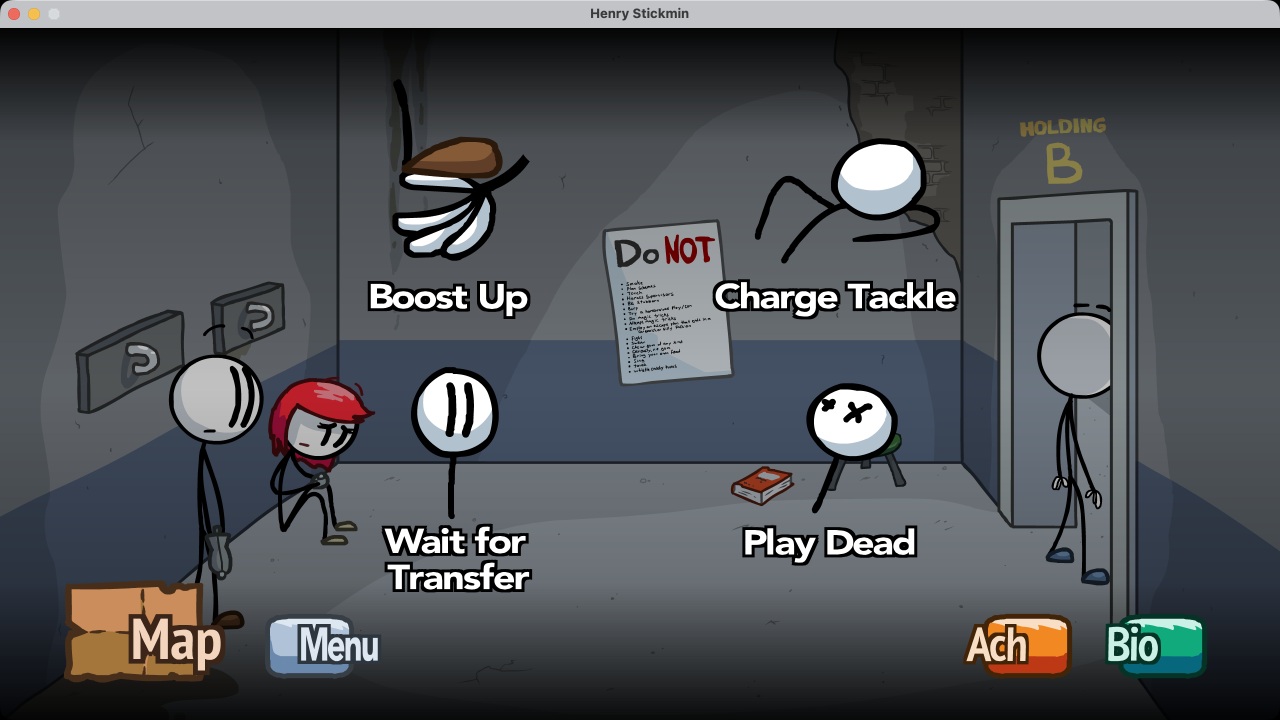
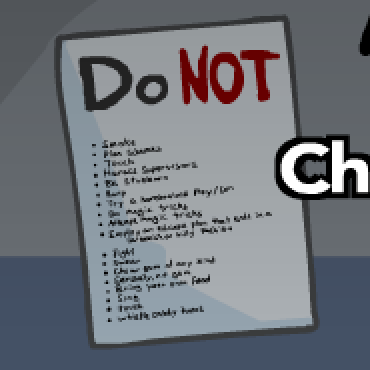
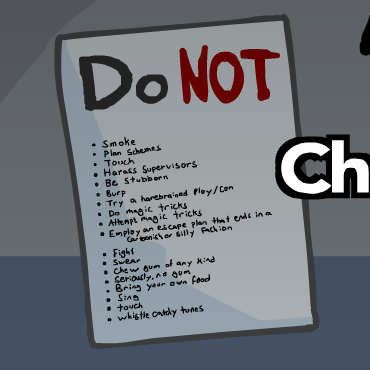
It might not look all that different in these screenshots, but you’ll probably notice a massive difference when you try it yourself. If you zoom in close enough, you can see a clear difference in the “Do NOT” poster. In the first screenshot, it’s basically unreadable, but in the second one you can clearly make out what the poster is saying.
Here’s a closer look:
Before
After
How do I do it then?
- Make sure Steam is open, and the game is closed
- Click on the game from your Library page, you should get to the screen with a “Play” button on it
- On the right, click on the gear, then Manage > Browse local files
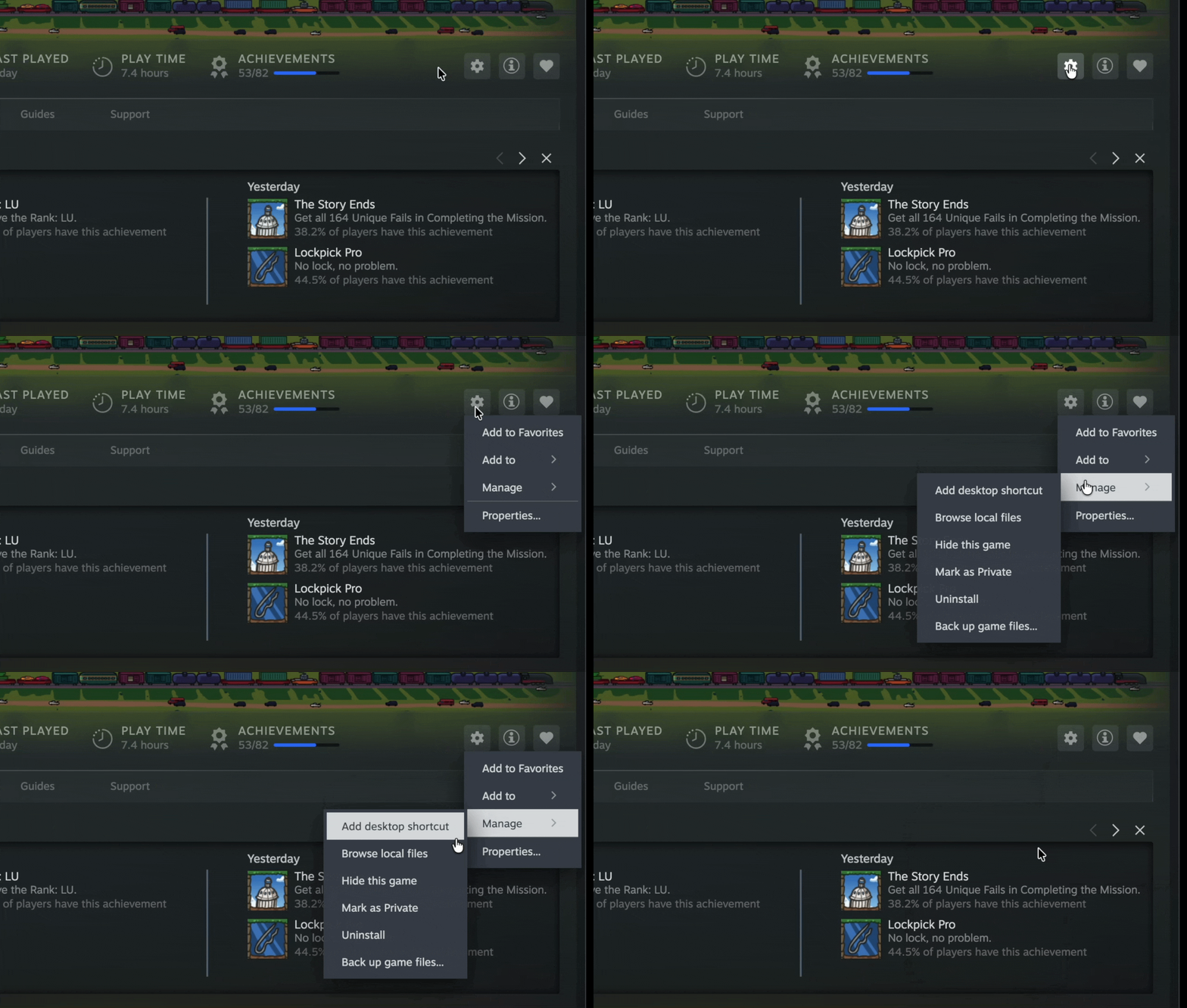
- A Finder window will appear. Control-click HenryStickmin.app, then click on Show Package Contents, then double click on the Contents folder
If you don’t see the .app file extension, that’s okay, it’s just hidden and you don’t have to worry about it.
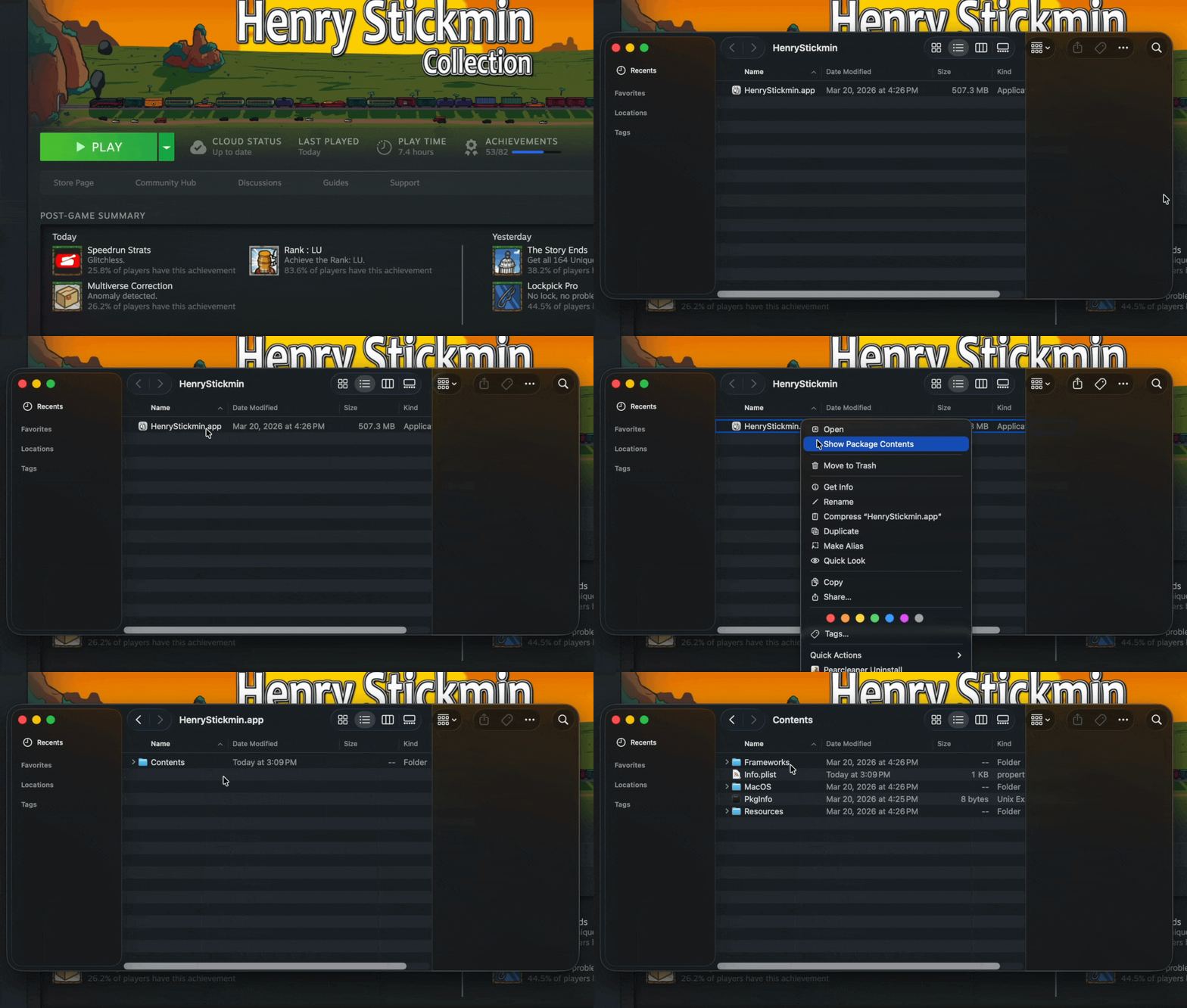
- Control-click Info.plist, then choose Open With > Other…
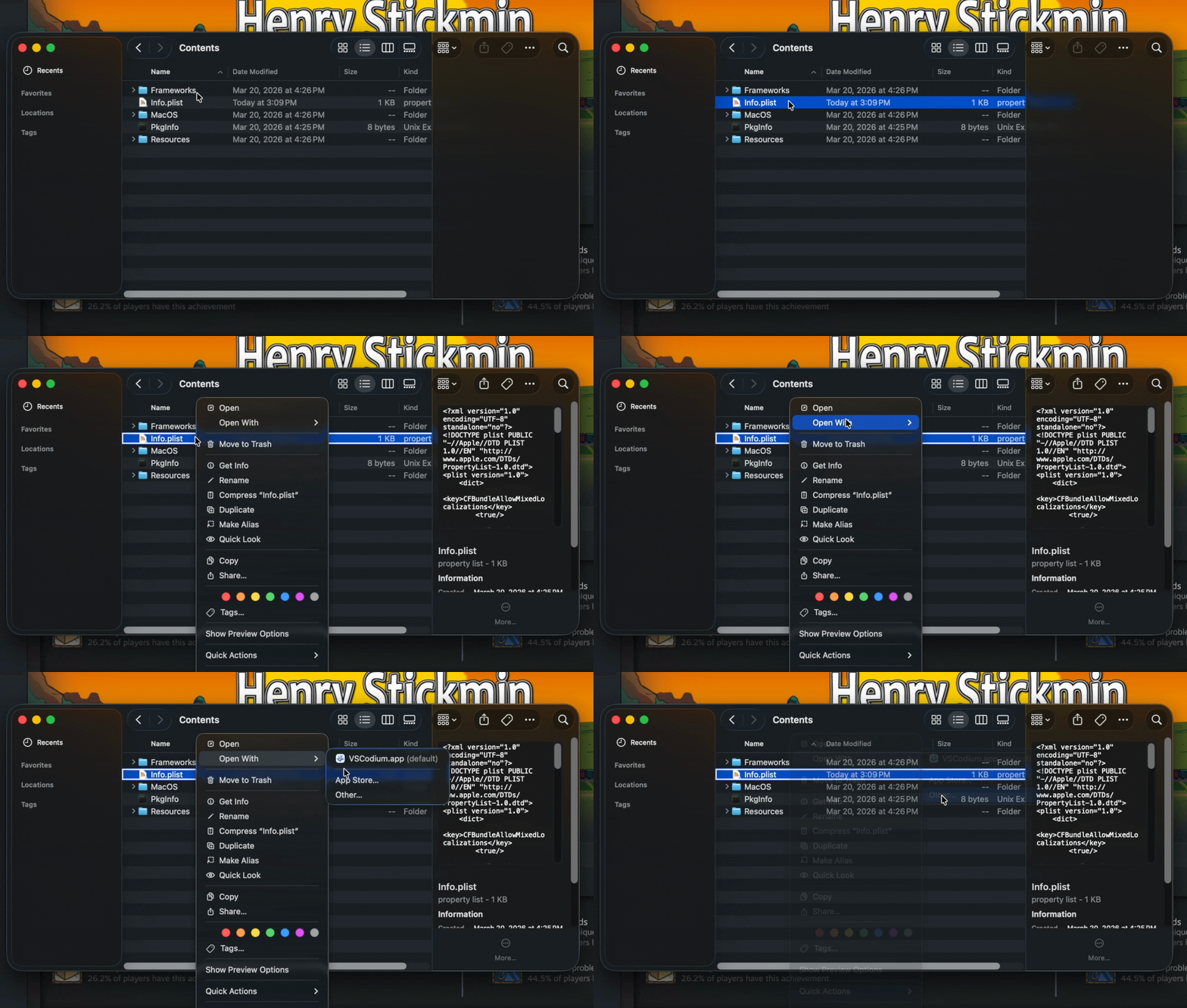
- Search for TextEdit, then click Open
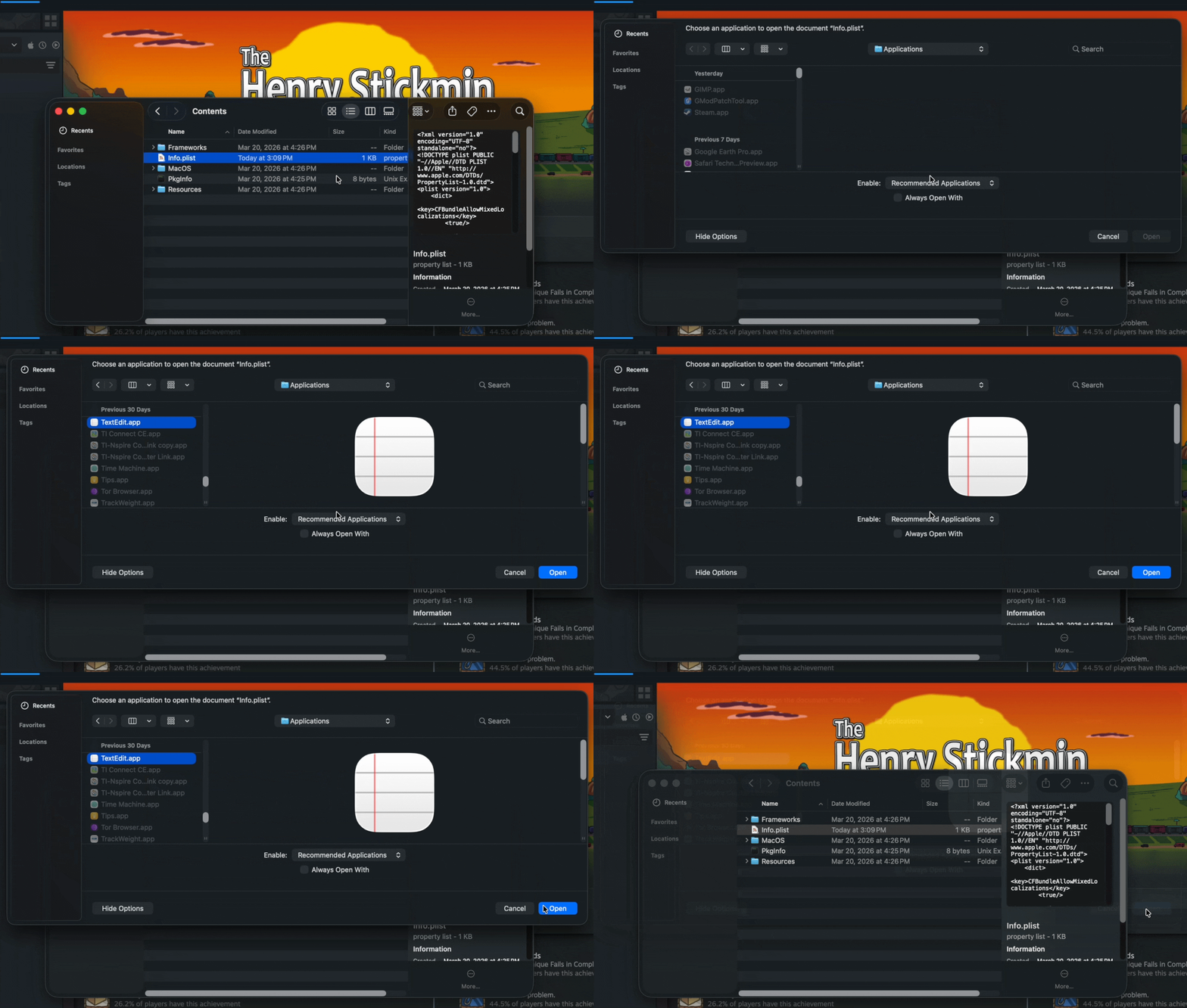
- A TextEdit window will appear. Here, you need to find these lines:
<key>NSHighResolutionCapable</key> <false/>
You will need to replace the <false/> with <true/> like so:
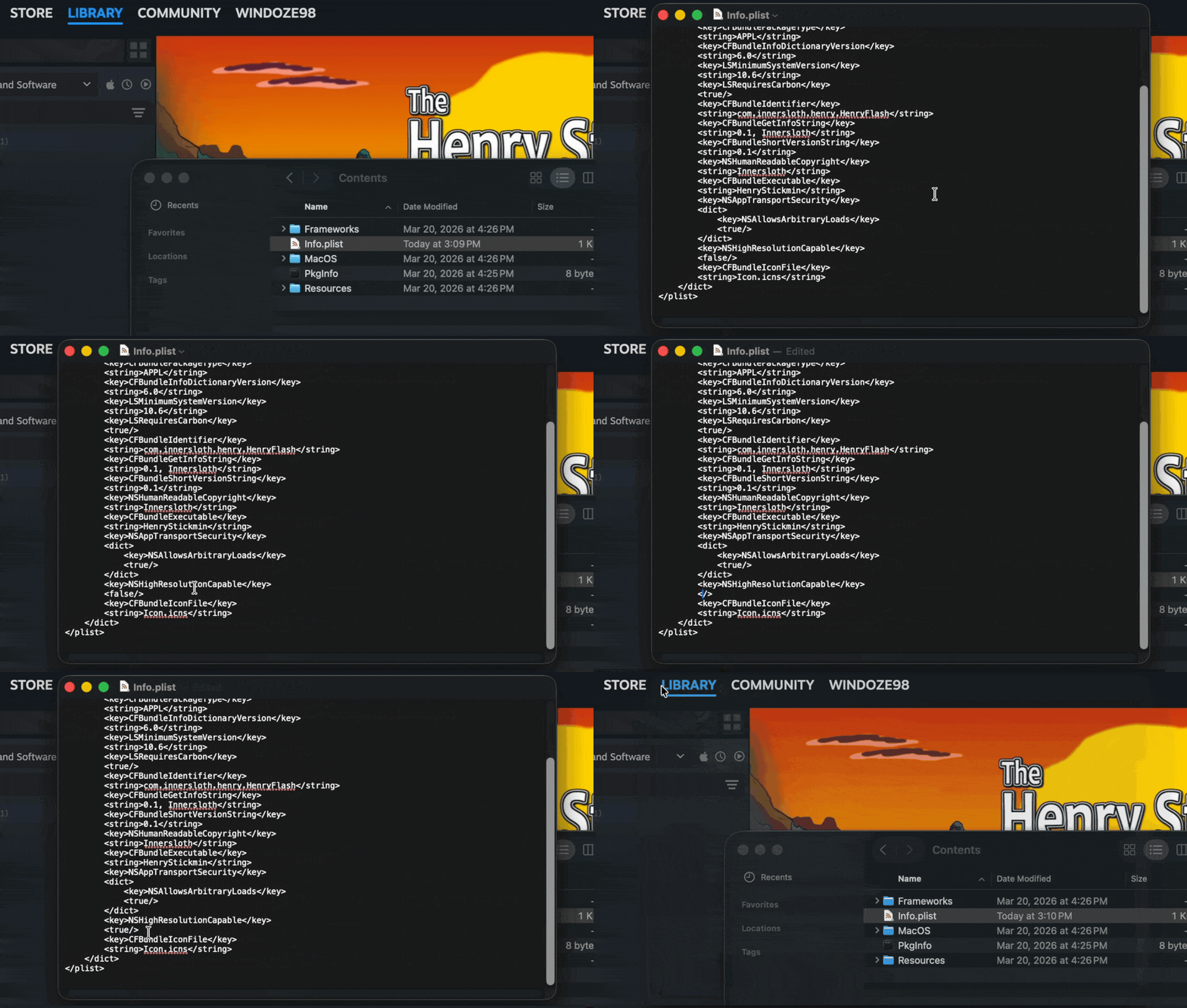 Press Command-S to save the file, then close the window.
 - You’re done! You can now open the game and it will be running at your Mac’s native display resolution.