
How to turn off FilmGrain and increase ImageQuality.
Here are some steps to disable FilmGrain and increase ImageQuality
Step-1
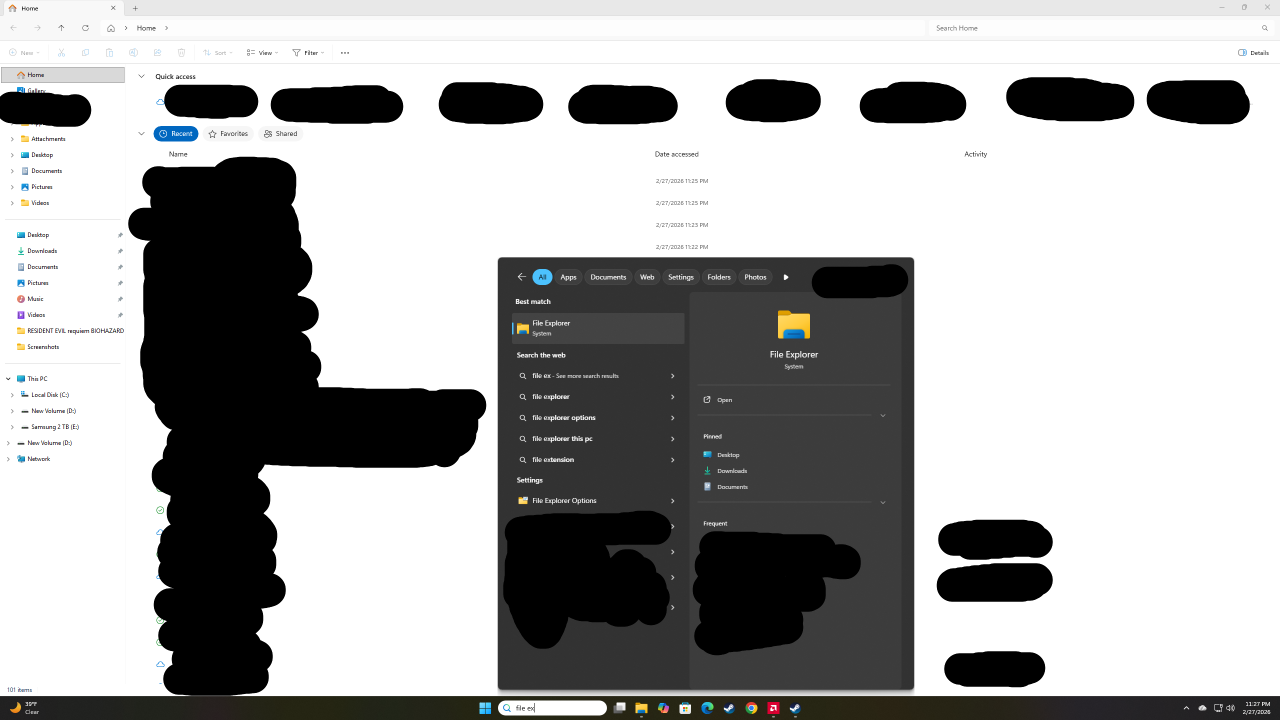
First find and open file explorer. You can probably search for it under your PC
Step-2
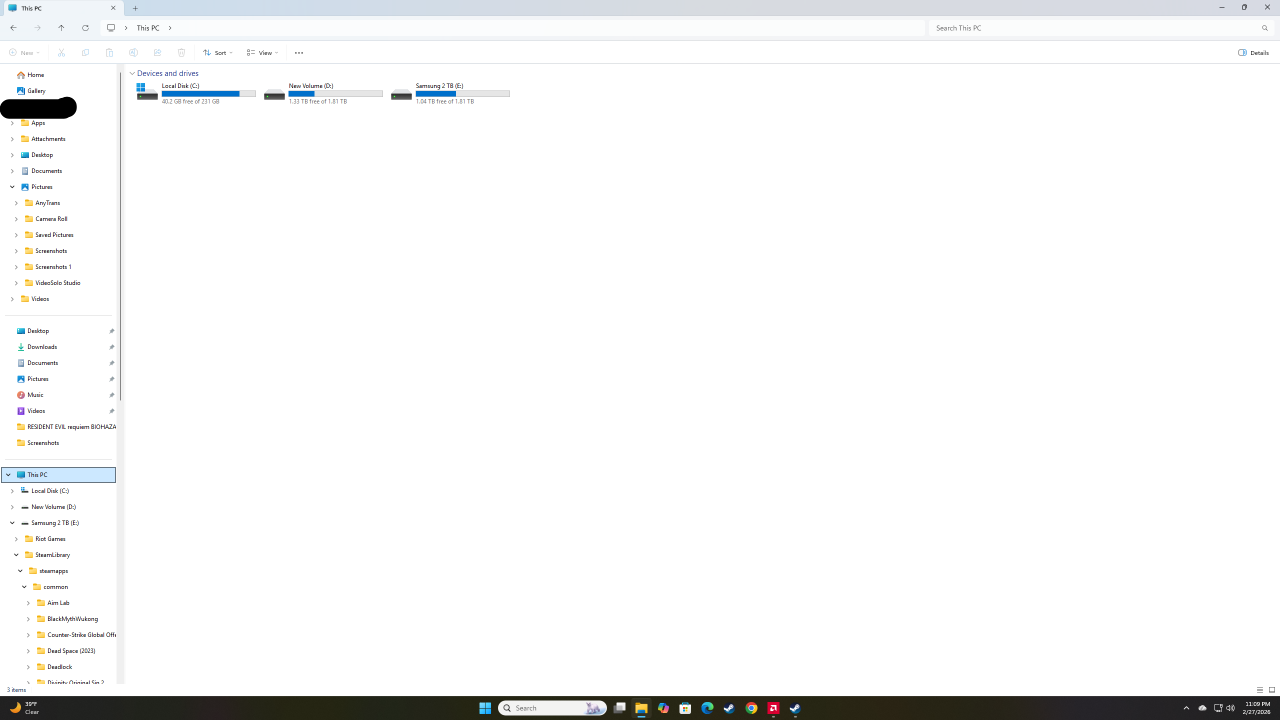
Scroll down and navigate to This PC.
Step-3
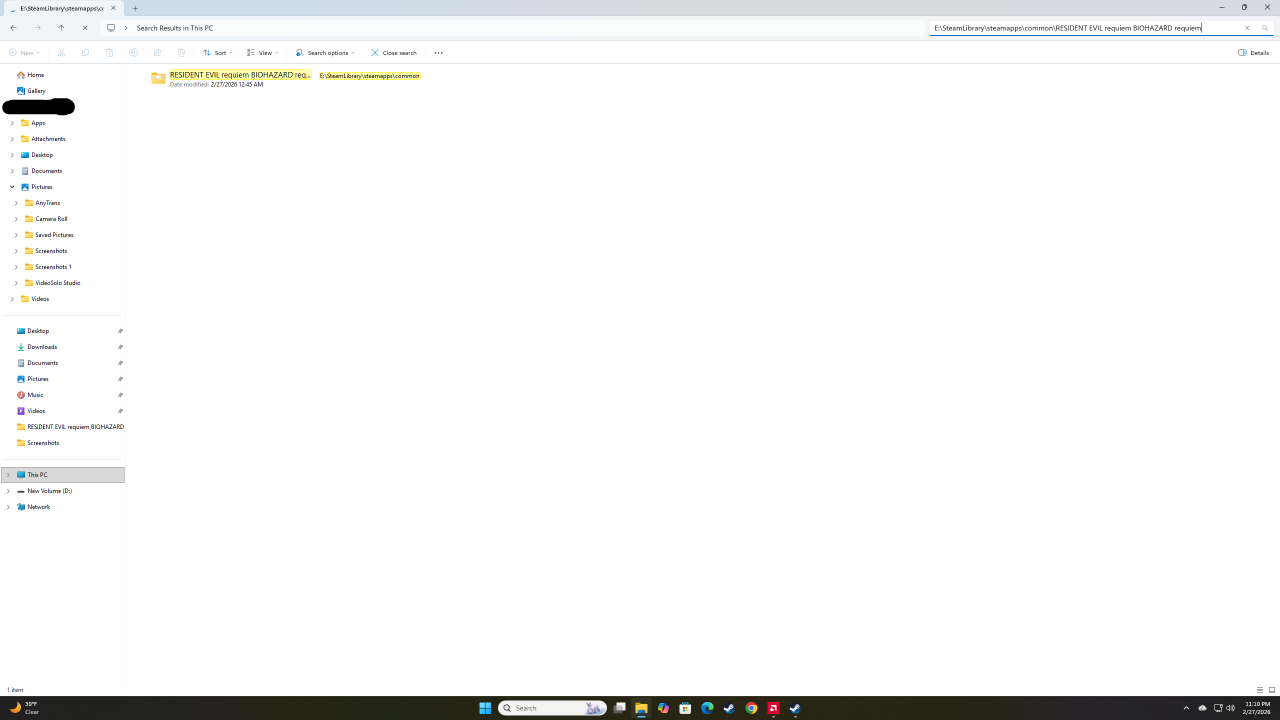
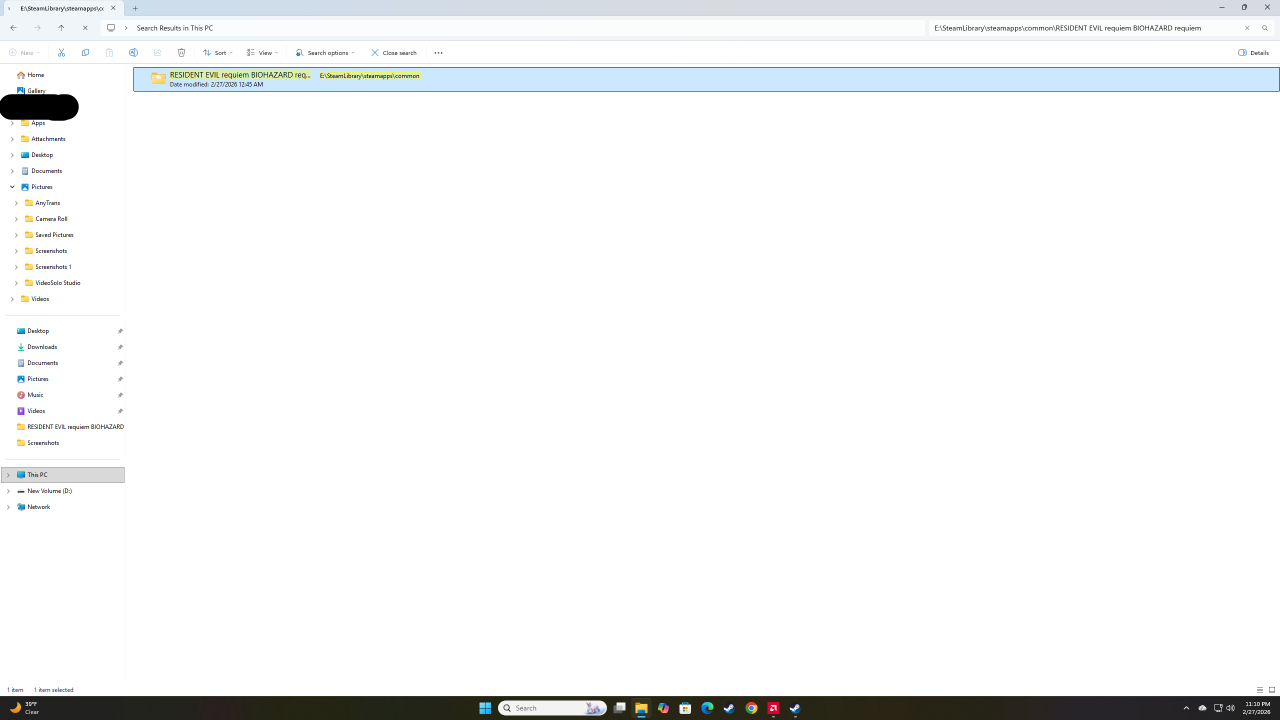
After clicking under This PC go to the top right search bar, type or copy —
E:\SteamLibrary\steamapps\common\RESIDENT EVIL requiem BIOHAZARD requiem — The goal here is to get to the RE9 folder.
Step-4
Double click on the RE9 folder.
Step-5
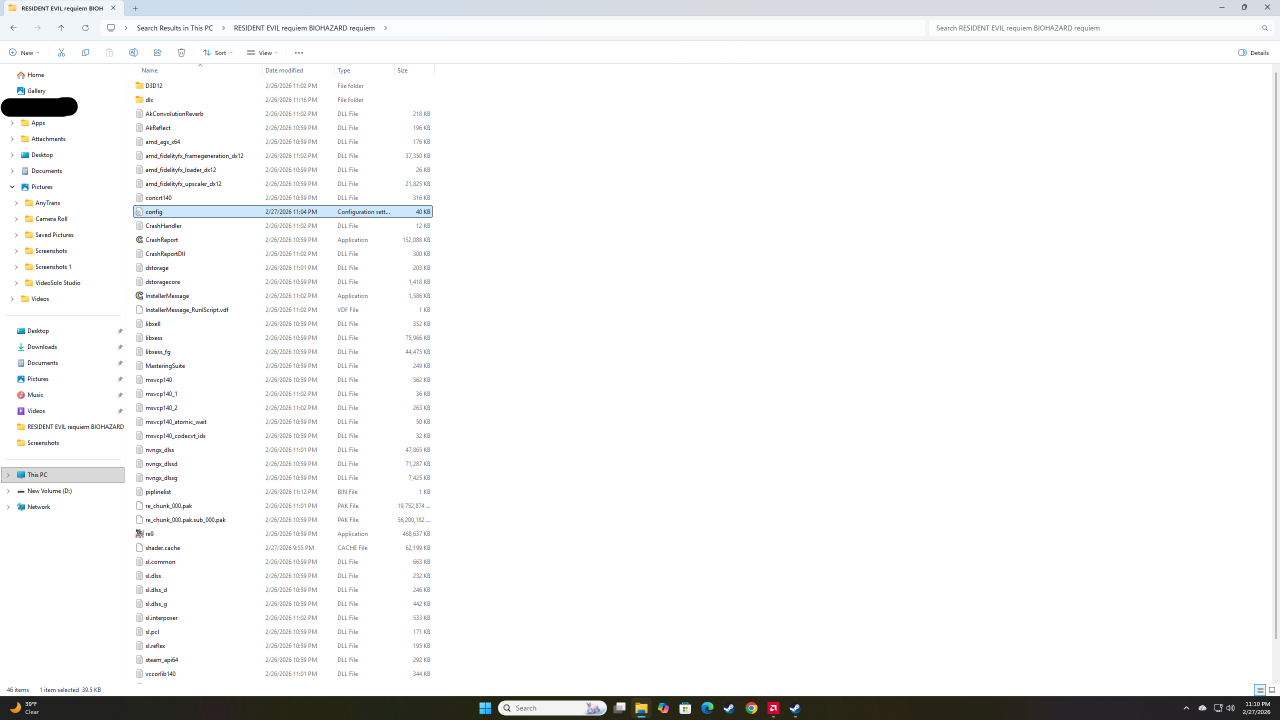
Under the RE9 folder just double left click on config.
Step-6
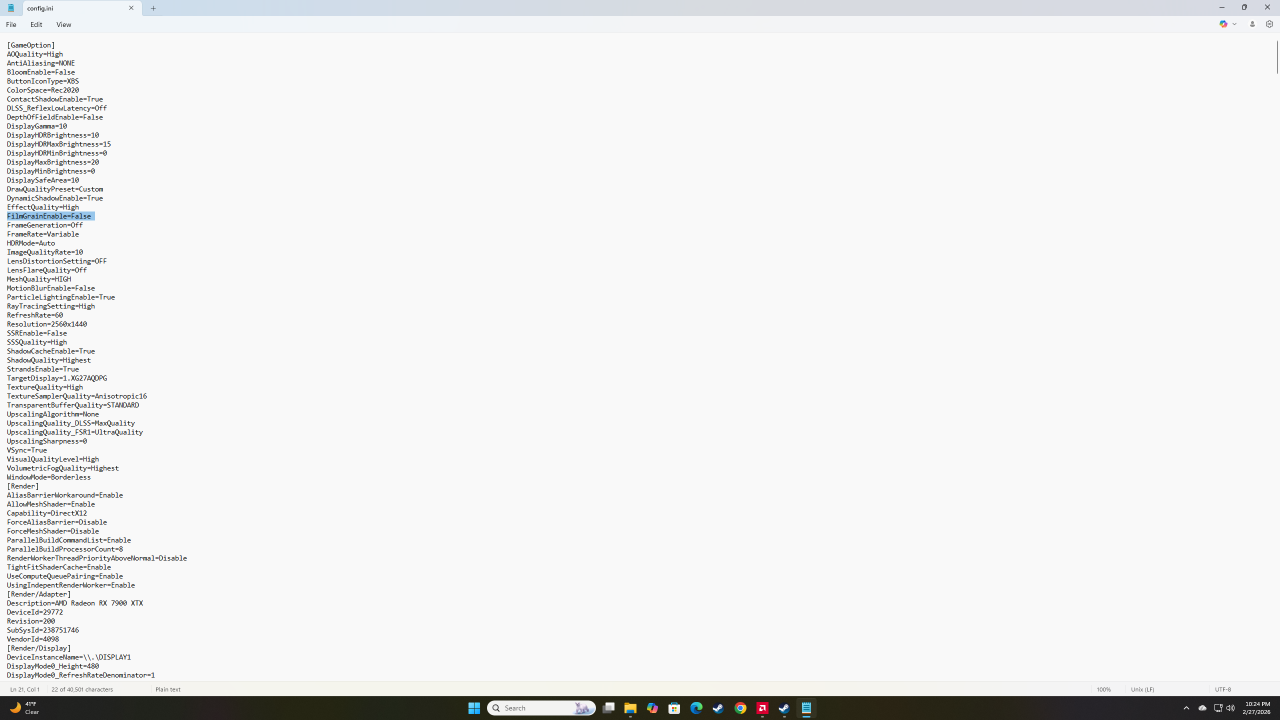
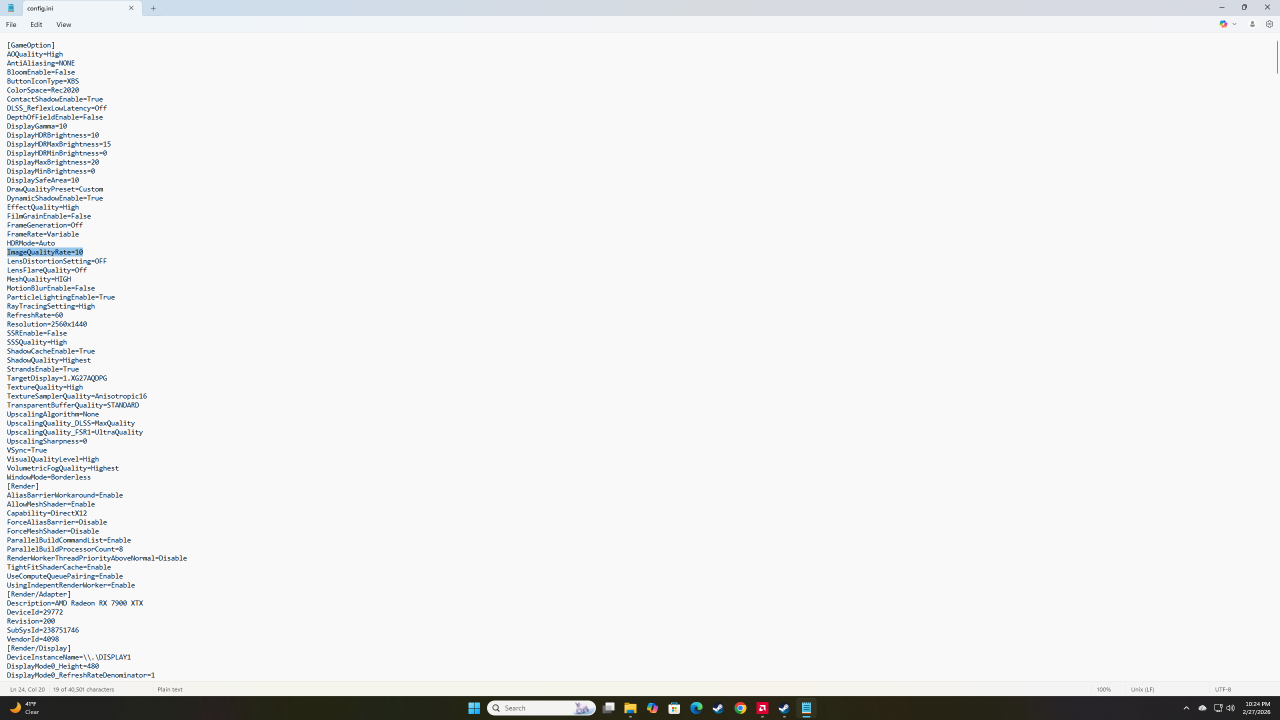
Here you can change a lot, I only changed the Film grain and image quality. Most of the other things you can change in game so were just gonna go over these things. You can figure out the rest.

Step-7
First find FilmGrainEnable=True, left click the end of True, delete True and type False
Step-8
Then find ImageQualityRate=5, left click the end of 5, delete 5 and type 10
Step-9
After changing these just go to the top left under file and save it. I would exit off config and reopen too see if the changes were saved.
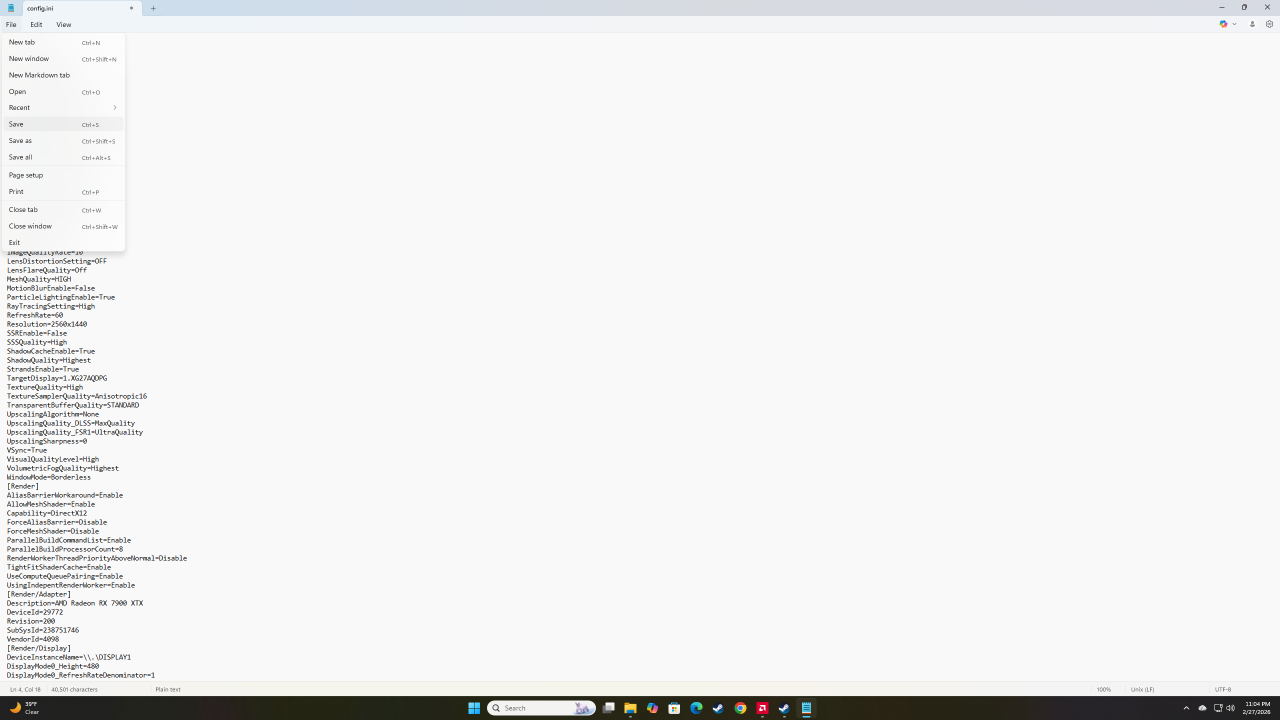
That’s it! I’m pretty sure you can really mess things up under Config so be carful changing anything else. I hope this helps you!