
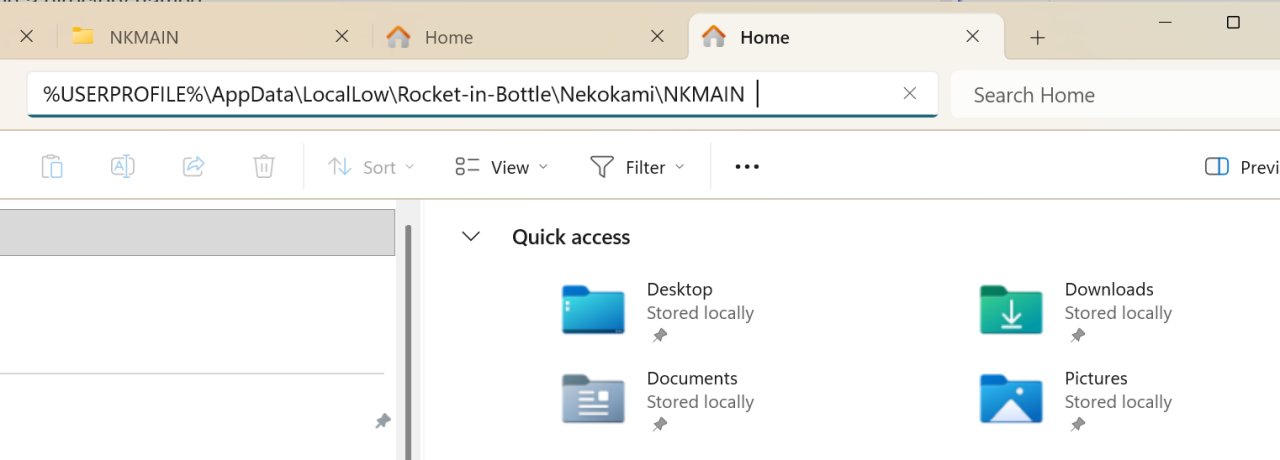
Inside this folder, you’ll find a directory named:
Open it — you should see save files like:
* P1.sav, P1.bak (Profile 1)
* P2.sav, P2.bak (Profile 2)
* P3.sav, P3.bak (Profile 3)
1. Launch the game
* Open Nekokami through Steam
* Make sure Steam Cloud sync is enabled
* Stay on the main menu
2. Backup your save files
* Press **Alt + Tab** to switch out of the game
* Go to the save folder (path above)
* Copy these 2 files:
* Paste them somewhere safe (into a backup folder) in case you regret the decision or want to restore them in the future.
—
3. Remove the Profile
* Still in the save folder, DELETE the following 2 files:
—
4. Sync with Steam Cloud
* Fully close the game
* Wait for cloud sync to finish
This step ensures the deleted files are also removed from the cloud.
—
5. Confirm in-game
* Relaunch Nekokami
* Go to the profile selection menu
* Profile 1 should now be gone